


You spend hours editing, the photo looks perfect in your gallery, but the moment you post to Instagram, it turns into a pixelated blur. This is every creator’s nightmare. It’s not your camera’s fault, but rather Mark Zuckerberg’s aggressive data compression algorithm.
Instagram prioritizes loading speed over visual fidelity. However, you can “trick” the system by delivering the exact file it wants, preventing compression from destroying your image. Here are the 5 technical rules to keep your photos and videos crisp.
1. The “Secret” Menu Setting (Mandatory)
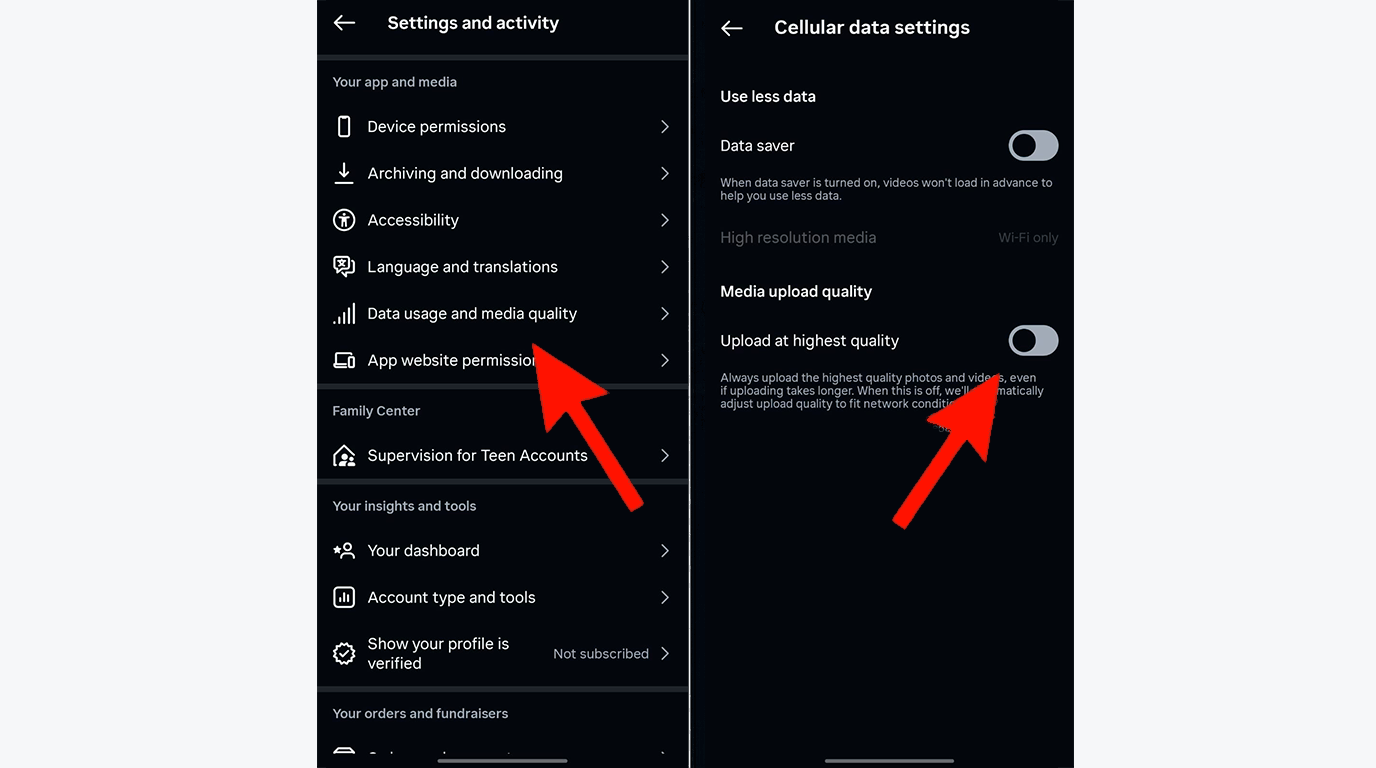
Before any technique, you must give the app permission to use data. By default, Instagram compresses uploads to save server bandwidth and your mobile data.
- Go to: Settings and privacy > Data usage and media quality.
- Turn On: “Upload at highest quality”.
- Turn Off: “Data saver”. Without this, no other tip will work.
2. The 4K Trap: Why Less is More
Many believe exporting a video in 4K will result in better quality. Wrong. Instagram’s maximum native resolution is 1080 pixels wide. If you upload a 4K file, Instagram’s algorithm has to brutally resize and compress that file in seconds to fit their standard. This process generates artifacts and loss of sharpness.
- The Rule: Export and upload your videos in 1080p (Full HD). Do the downscaling in your editing software (CapCut, Premiere), which will do a much better job than Instagram’s bot.
3. Color Profile (The iPhone Issue)
If your photos look “washed out” or gray after posting, the issue is the color profile. Modern iPhones and professional cameras shoot in advanced profiles (like ProPhoto or P3). Instagram, however, only truly understands the sRGB profile.
- The Solution: Always convert your photos to sRGB before posting. If you use an iPhone, turn off “Smart HDR” for feed photos, as the HDR brightness often doesn’t translate correctly to the platform.
4. Avoid the Native Camera and Editor
Never use the Instagram camera to capture important content. The quality is inferior to your phone’s native camera app. Worse yet: do not place filters, text, or GIFs over the photo/video right before posting. When you add a native element (like a sticker or Story filter) to a finished video, Instagram has to “re-render” the entire file, applying a second layer of compression on top of the existing one. Do all editing in external apps (Lightroom, Snapseed, VN).
5. The Secret Recipe (Export Specs)
To guarantee quality, deliver the file in the exact specifications Instagram requests. Note down the “magic formula” for exporting:
- Format: MP4 (Video) or JPEG (Photo).
- Video Codec: H.264 (The most compatible).
- Bitrate: Between 10 to 15 Mbps for 1080p videos.
- Aspect Ratio: 4:5 for Feed (takes up more screen) or 9:16 for Reels/Stories.

 EN
EN  PT
PT  ES
ES